
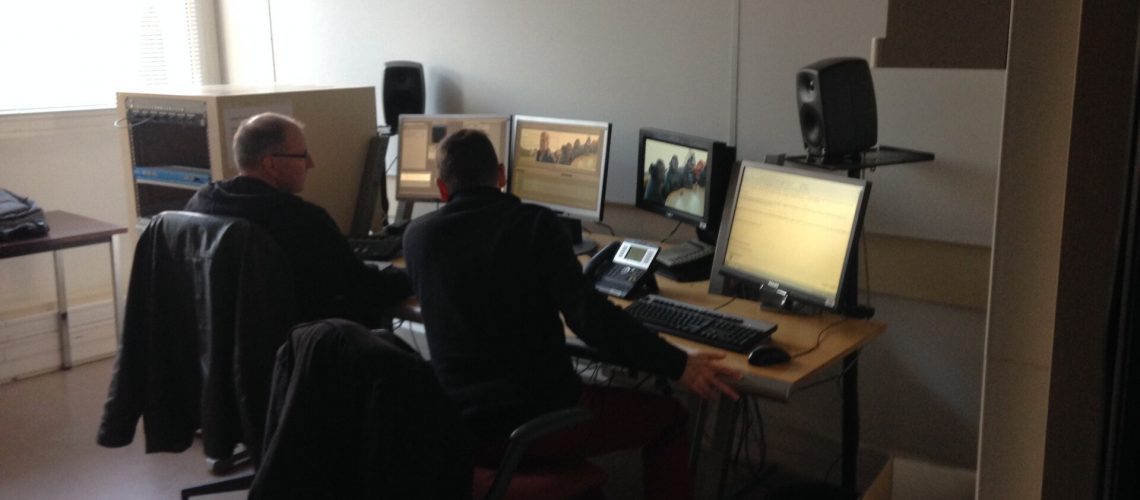
Apple’s Final Cut Pro AI upgrades just landed in Creator Studio with transcription, auto-captioning, smart color grading, and scene detection. If you edit on an M-series Mac with a sub-$500 kit, these tools could change how fast you turn footage into finished video. Here is what actually matters after three weeks of beta testing.
What Is Creator Studio and Why It Matters
Creator Studio is Apple’s new hub inside Final Cut Pro that bundles AI-powered tools into one workspace. Think of it like a junior assistant who handles grunt work so you can focus on the cut. The update is free for existing FCP users on version 11.1 and runs entirely on the M-series Neural Engine. No cloud processing, no subscriptions, no upload wait.
For budget creators, this is the real story. I edit on a refurbished M1 Mac Mini I bought for $450, and the AI runs locally and feels fast. A 15-minute interview transcript takes about 90 seconds. I was paying $20 a month for a captioning service that pays for itself fast.
The Four AI Features That Change Your Workflow
Apple packed four AI-driven tools into Creator Studio. Here is what delivers and what is still catching up.
AI Transcription
Transcription converts timeline audio to text with speaker detection. Select a clip, hit transcribe, and you get searchable text synced to the waveform. Type a keyword and jump to it. For interview-heavy content or talking-head tutorials, this alone justifies the update.
Accuracy lands around 92 to 95 percent for clean dialogue with a lav mic, similar to Descript but inside the NLE with no round-tripping. Noisy room audio drops to maybe 85 percent. You can edit the text and corrections stay synced, so fixing a name updates across the project.
Auto-Captioning
Auto-captioning generates burn-in captions directly from the transcription. Pick a style, and FCP renders them in-sync with the timeline. No more exporting to a third-party tool, waiting, and re-uploading. It is done before you export.
This matters more than most editors realize since social platforms now expect captions as a baseline. Videos without them get skipped. Having caption generation inside FCP means you add them as part of the edit. I toggle captions on during the rough cut and forget about them.
Smart Color Grading
Smart color grading analyzes a reference clip and applies matching corrections to other clips in the timeline. Select a hero shot that looks right, and FCP extrapolates color wheels, curves, and white balance to the rest of your footage. It works best on footage from the same camera and lighting setup.
This is not replacing a colorist. If you mix lighting or cameras, the AI generates a good starting point that still needs tweaks. But if you shot a three-camera interview with identical Sony ZV-E10 bodies under the same key light, it nails it in one pass. For budget creators with controlled lighting, this saves ten to fifteen minutes per project.
Scene Detection
Scene detection analyzes your timeline and creates markers at scene boundaries. It also tags shot types: close-up, medium, wide. Need to find every wide shot in a 30-minute edit? Click the wide filter and jump between them.
This sounds minor until you use it for a week. Going back to a timeline without scene markers feels like editing blindfolded. For interview editors and multicam timelines, the time savings add up fast.
Why Budget Creators Benefit Most
A third-party transcription service costs $10 to $30 per month. Auto-captioning tools run another $10 to $20. Creator Studio adds all four AI features for zero additional cost if you already own FCP. At $299.99 one-time, FCP is already the most affordable pro NLE on Mac, and Apple kept it all local with no cloud processing, data caps, or subscription price hikes.
Should You Upgrade?
If you own Final Cut Pro, the Creator Studio update is free. If you are on an older FCP X version, updating to 11.1 costs nothing. Apple does not charge for major version upgrades.
If you are on an Intel Mac, there is a catch. Creator Studio’s AI features require the M-series Neural Engine, so transcription and caption features will not work on a 2019 Intel MacBook Pro. Some tools fall back to software-based processing that is noticeably slower. This might be the nudge to consider a base-model Mac Mini M4 at $599.
If you do not use FCP, these features are not switch-your-entire-workflow good unless transcription and captioning solves a problem you have now. For creators on DaVinci Resolve, the free tier still offers stronger color tools. Read our guide to DaVinci Resolve 21 and what actually matters for working filmmakers for the full comparison.
Creator Studio vs. DaVinci Resolve Free
DaVinci Resolve’s free tier has been the budget editor’s secret weapon for years. It offers professional color grading, Fairlight audio, and Fusion compositing for zero dollars. How does FCP’s new AI suite compare?
Resolve does not have built-in AI transcription or auto-captioning in the free version. You can add captions manually through the subtitle track, but it is nowhere near as fast as FCP’s one-click generation. Resolve Studio ($295 one-time) adds those features but costs about the same as buying FCP.
On color grading, Resolve free still wins. FCP’s smart color grading is a helpful automation but does not touch Resolve’s color management, node-based grading, or HDR tools. If color is your priority and you have time to learn the node workflow, Resolve free is the better choice.
On ease of use, FCP wins. The magnetic timeline, role-based organization, and now the AI tools make FCP faster for solo creators who need to ship. I work in both. Resolve is more powerful on paper, but FCP gets me to an export faster for most projects.
Practical Workflow Tips
Run transcription before the rough cut. The searchable text lets you find the best soundbites without scrubbing. Type a keyword and jump to the relevant moments. It has cut my interview edit time by about a third.
Set up a caption style preset on first use. Pick font, opacity, and positioning and save it so every new project inherits the style. I use white text with a 60 percent black background, lower center, readable on every platform.
Use scene detection markers as chapter points for YouTube. Export with chapter markers enabled for a premium viewing experience. It takes two clicks after scene detection runs.
Do not let smart color grading replace your exposure discipline. The AI works better when it has less to fix. Expose correctly in-camera using zebras and your histogram before you roll.
For more on building a consistent editing workflow from the ground up, read our video storytelling guide for beginners. The same principles apply whether you use Final Cut Pro, Resolve, or any other NLE.
Frequently Asked Questions
Does Creator Studio work on Intel Macs?
Partially. Scene detection and basic color matching work through software processing, but transcription, auto-captioning, and neural-engine color grading require M-series chips. You will see partial functionality but slower performance on Intel.
Do I need to pay extra for Creator Studio?
No. If you own Final Cut Pro (version 11.x), the update to 11.1 is free. Apple does not charge for feature updates within a major version.
Can I edit transcription text if the AI gets words wrong?
Yes. The transcription is fully editable. Corrections stay synced to the timeline, so fixing a name or technical term updates throughout the project.
Is the caption export compatible with TikTok and Instagram?
Yes. Burn-in captions render into the video file, so any platform that plays video displays them. Export in H.264 or H.265 and upload directly. No additional caption file needed.
Does Creator Studio replace DaVinci Resolve for color grading?
No. Resolve’s free tier still offers superior manual color tools. Creator Studio’s smart color grading is a time-saver for matching shots in controlled conditions, but it is not a replacement for Resolve’s node-based grading pipeline.
The Move
Open Final Cut Pro, check for updates in the Mac App Store, and download version 11.1. Run transcription on your timeline. See how much time you just got back.
This article contains affiliate links. If you purchase through these links, I may earn a small commission at no extra cost to you. I only recommend gear I would use myself.